Fotonia Documentation
Thank you for purchasing my theme. If you don't find the answers for your questions in this help file, please feel free to email via my user page contact form . Thanks!
License
When you purchase a theme from Themeforest, the Regular License allows you to use the theme in a single end product. One theme license for one domain ( one theme installation in a single domain )
The billing process and licensing term are fully managed by Envato Ltd. and we don't have any control over this matter.
For more information about licensing check this page https://themeforest.net/licenses/standard?license=regular
FAQ:
Can I use the theme on a test site, then move it to a live site when finished?
Yes, you can use the theme on a test site to build it, then move it to the live site once you're finished. You'll have to remove the theme files from the test site.
Getting Started
If you are new to WordPress here's what you have to do:
Installing WordPress
In order to install the current version of WordPress Theme, please go to https://wordpress.org and download the current version of WordPress. For information on how to install WordPress, please see the WordPress codex page https://codex.wordpress.org/Installing_WordPress .
Installing Theme
You can do it in 2 ways:
- a. Via WordPress Admin: Go to Appearance > Install Themes > Upload and choose fotonia.zip file ((make sure you are not uploading the whole zip file that you've downloaded (including dummy content, documentation) but only the fotonia.zip file). Click Install Now.
- b. Via FTP: Upload fotonia folder into wp-content/themes folder.
- After you've installed the theme make sure to activate it.
Import Demo
If you want your website to look like the live demo, then customize it as you want, follow these steps:
After the theme is activated make sure to install and activate the required and recommended plugins: MT Fotonia, Elementor, ACF, Contact Form 7 plugins . The plugins are necessary for having the features presented in the demo.

Install and activate One Click Demo Import plugin.
Go to Appearance > Import Demo Data and click the Import Demo Data button for one of the website demos.
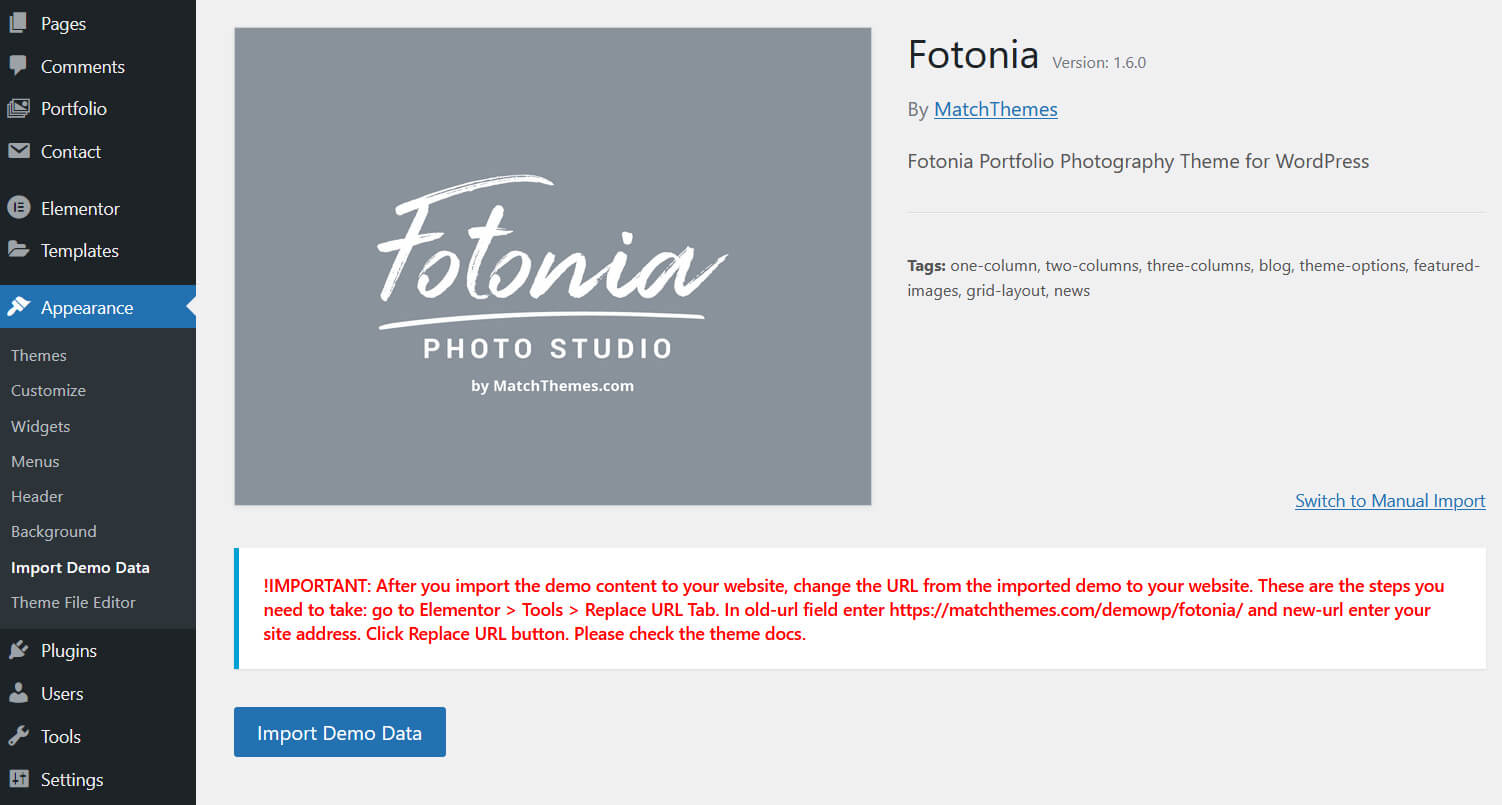
- A new page will open. Click "Continue & Import" button. Wait until the demo content is imported to your website.
-
IMPORTANT: After you've imported the demo content to your website, change the URL from the imported demo to your website. These are the steps you need to take:
- Go to Elementor > Tools > Replace URL Tab
- In old-url field enter https://matchthemes.com/demowp/fotonia and new-url enter your site address. Click Replace URL
- Go the General Tab > Regenerate CSS, click Regenerate Files
- Click Save Changes button
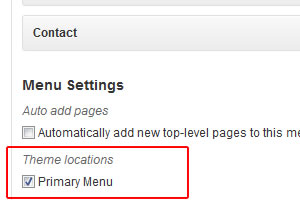
- If the menu in the header doesn't appear, go to Appearance > Menus, select "Primary Menu" at the bottom of the page and click Save.
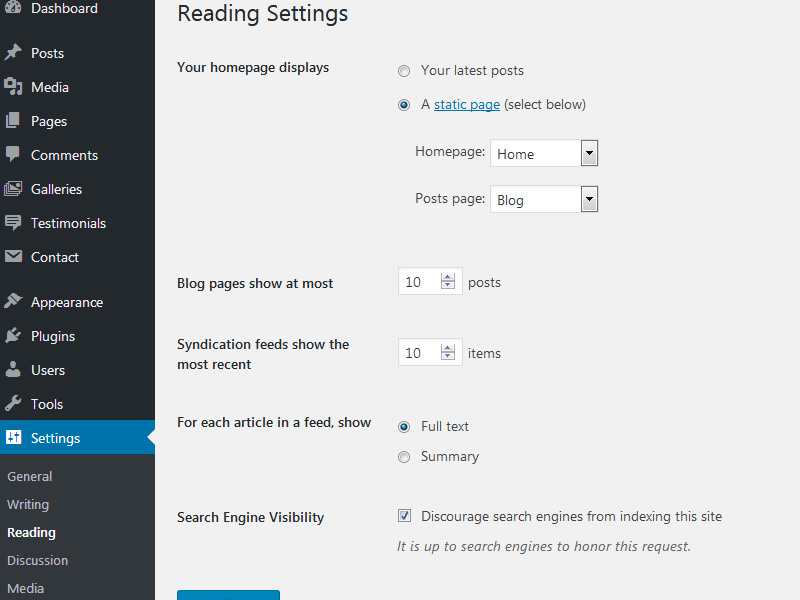
In case the blog posts appear in the main page, instead of the home page, go to Settings > Reading > Your homepage displays, select > A static page and for the Homepage option select the Home page.
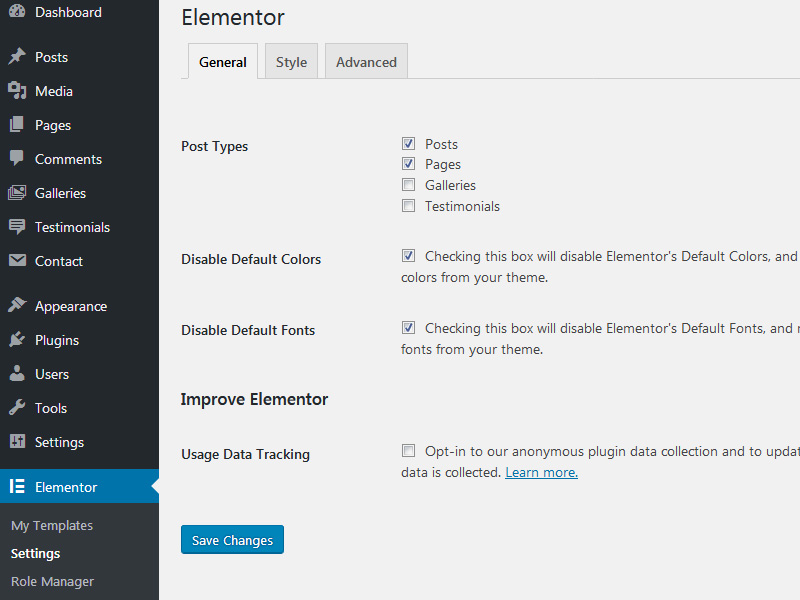
To use the Colors and Typography options from Appearance > Customize , go to Elementor > Settings and check Disable Default Colors and Disable Default Fonts options.
-
Go to Elementor > Tools > Replace URL Tab
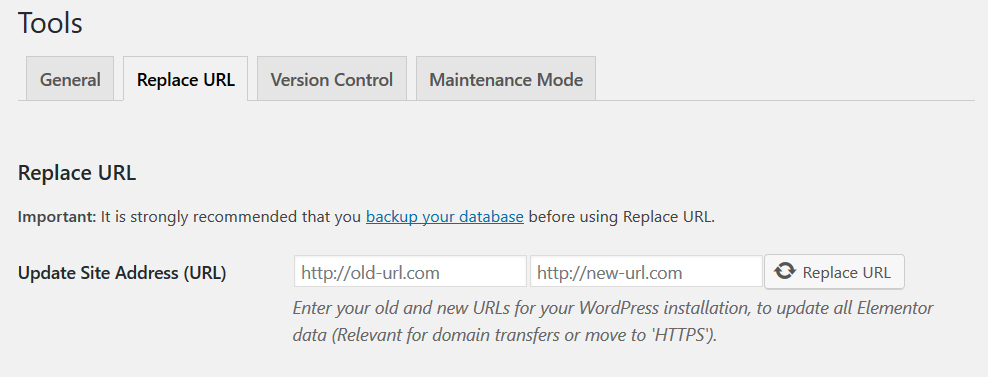
- In old-url field enter https://matchthemes.com/demowp/fotonia and new-url enter your site address. Click Replace URL
- Go the General Tab > Regenerate CSS, click Regenerate Files
- Click Save Changes button
After you've installed the theme, you can customize it in Appearance > Customizer.
Setup Menu
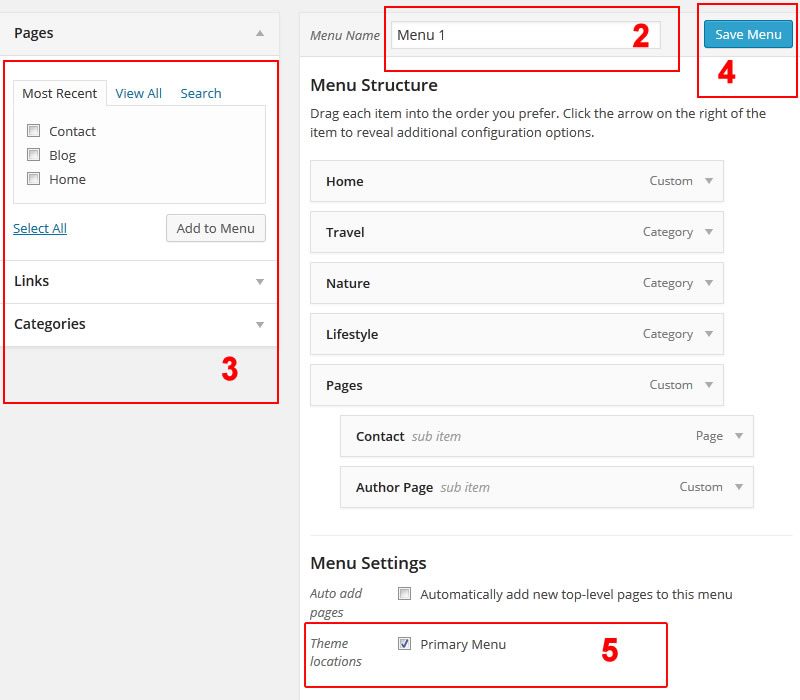
- Go to Appearance - > Menus tab
- Add new menu, enter Menu Name
- Add Menu Items. Select the pages you've just created and add them to the menu
- Drag & drop the menu items as you like. Check the image below. Than save the menu
- !IMPORTANT: make sure the Theme Locations option is set to Primary Menu.
Pages General
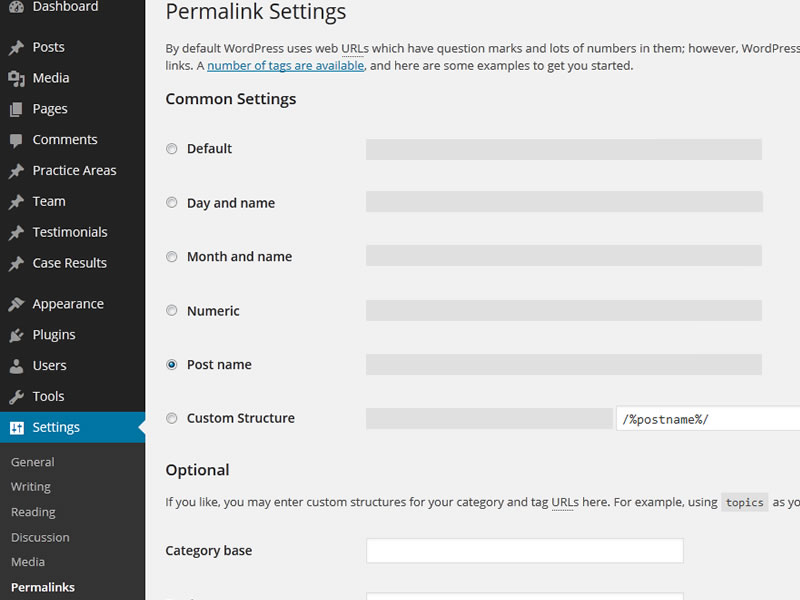
First go to Settings > Permalinks. Select from Common Settings > Post name option. This is for better SEO permalinks.
The theme comes with the following custom Page Templates:
- Default Template - The default page
- Home Template
- Full Width Template
- Full Screen Template
How to use a template:
- Click Pages > Add New.
- Look for Page Attributes on the right side and click on the "Template" drop-down menu.
- Choose a page template.
- Click the Publish button above.
- Now you can add your new page to your Menu.
Setup Pages
Elementor
The theme uses the Elementor page builder plugin. The majority of page are created with it. To learn more about Elementor and how to use it please check this page: Elementor Docs
1. After the Elementor plugin is installed, go to Elementor > Settings and check Disable Default Colors and Disable Default Fonts option. By doing so you can use the Colors and Typography options from Appearance > Customize
2. If you haven't import the theme demo data and you want to use just the Fotonia Elementor page templates, go to Elementor > My Templates and import the fotonia-elementor-page-templates.zip file from the main archive.
Create a Page with Elementor
- Click Pages > Add New
- Optional add the Featured Image and modify the Page Customization options ( right under the text editor) . Click the Publish button.
- Click the Edit with Elementor button
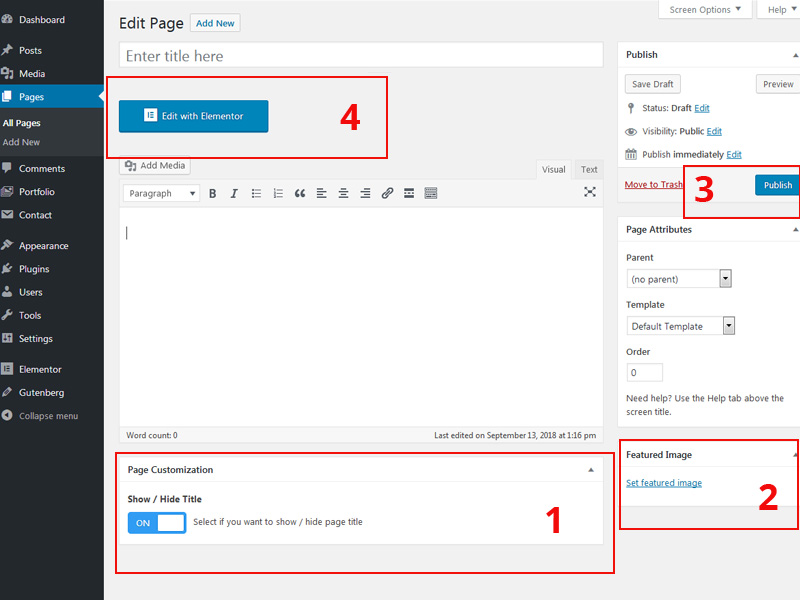
- Click Add Template and select from My Templates one of the Fotonia page templates.
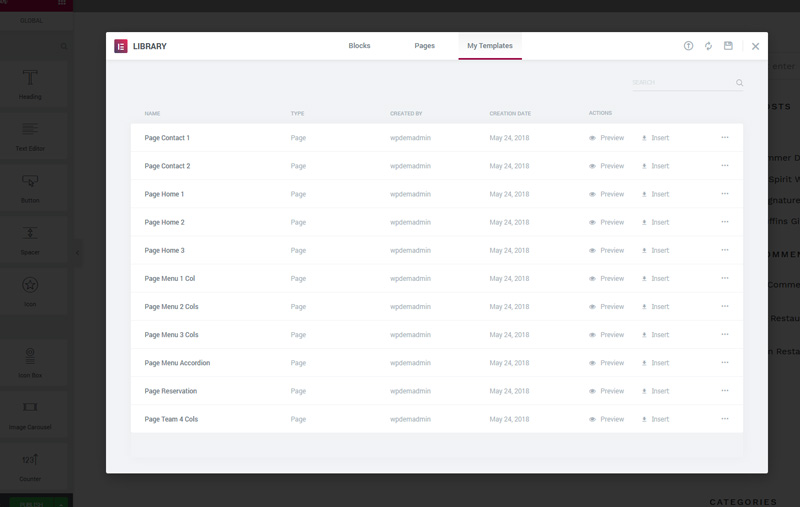
- OR click Add New Section and start building your page as you want.
Homepage
- Click Pages > Add New.
- Look for Page Attributes on the right side and click on the Template drop-down menu. Select the "Home" template.
- Add H1 and H2 tags with top title and subtitle.
- Add [portfolio_slider count='8'] shortcode.
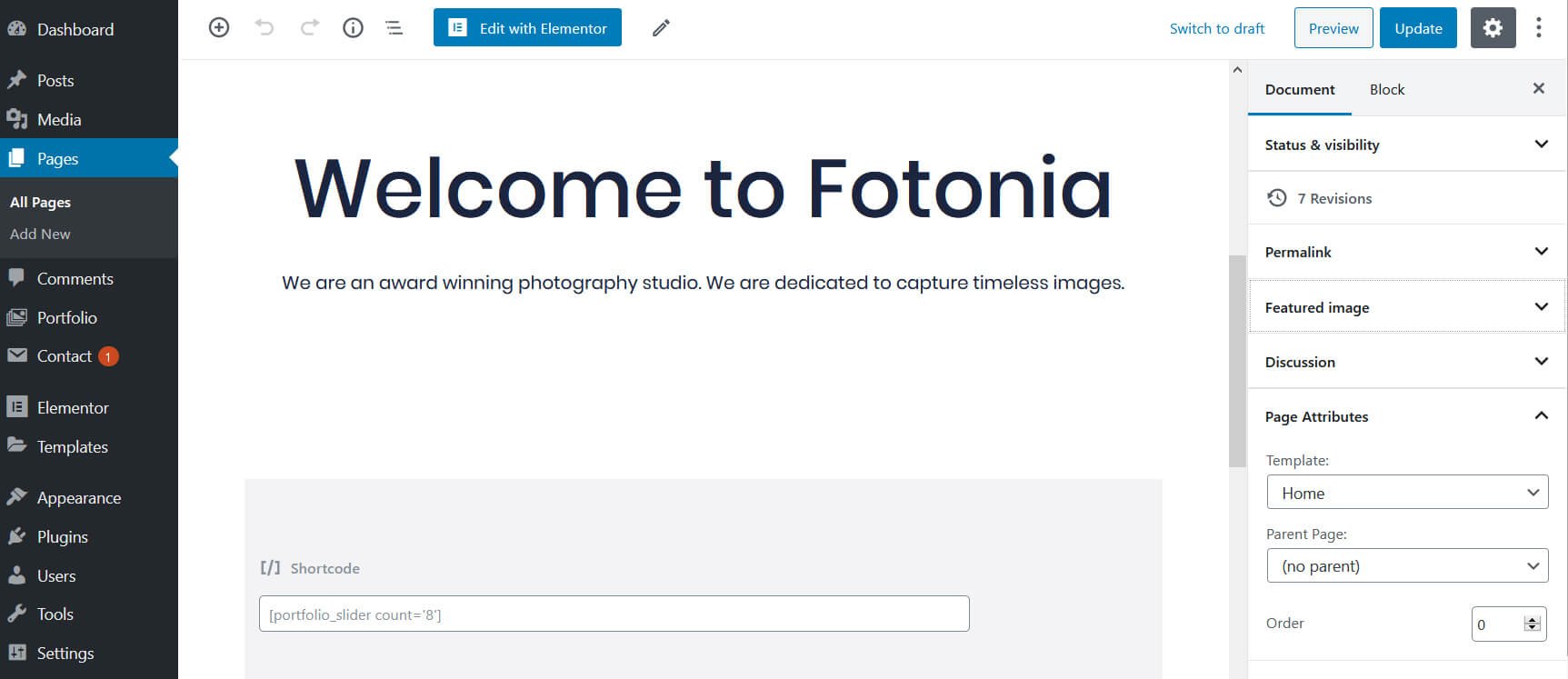
- Click Publish.
- You can also add more home content by edit with Elementor button
-
Click Settings > Reading and select Front page displays a static page. Select the page you just created as your Front page and click Save Changes.
Portfolio Page
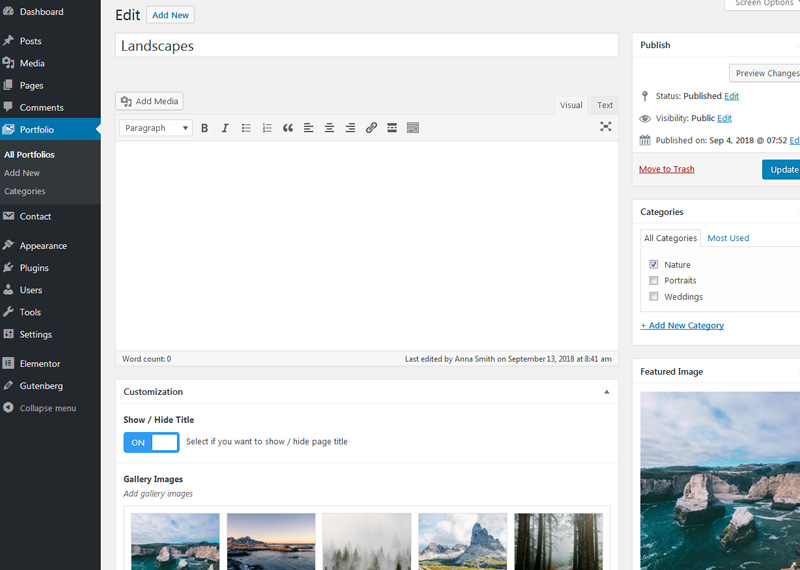
- Click Portfolio > Add New
- Below the text editor you'll find the Customization options.
- Add your gallery images via the Gallery Images option
- Select a Gallery Template ( default is the Masonry 4 Cols )
- Add a Featured Image
- Click Publish.
Contact Page
- Click Pages > Add New
- Click the Edit with Elementor button
- Click Add Template and select from My Templates one of the Contact page templates.
- Click Publish
- Install and activate the contact 7 plugin ( https://wordpress.org/plugins/contact-form-7/)
Go to Contact > Add New and create a new contact form
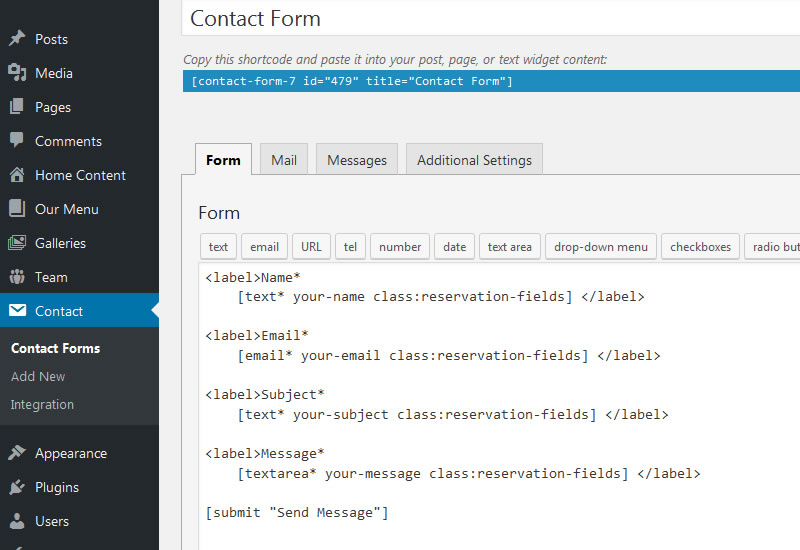
Add the following code in the Form option to look like in my demo
<p>[text* your-name placeholder "Name"] </p>

<p>[email* your-email placeholder "Email"] </p>

<p>[text your-subject placeholder "Subject"] </p>

<p>[textarea* your-message x4 placeholder "Message"] </p>

[submit "Send Message"]
- Click the Save button. Copy the shortcode and paste it in the contact page.
Blog Page
- Click Pages > Add New.
- Click Publish.
- Now you can add the new page to your menu
-
Now click Settings > Reading and select Front page displays a static page. Select the blog page you just created as your Posts page and click Save Changes.
- To select a blog layout go to Appearance > Customize > General Options > Blog - Articles Layout option
- Click Posts > Add New to create a news post. Make sure when you add a Featured Image for a post to have at least 1300x800px to look like my demo. You can play with other size too.
Customization
Widget Areas
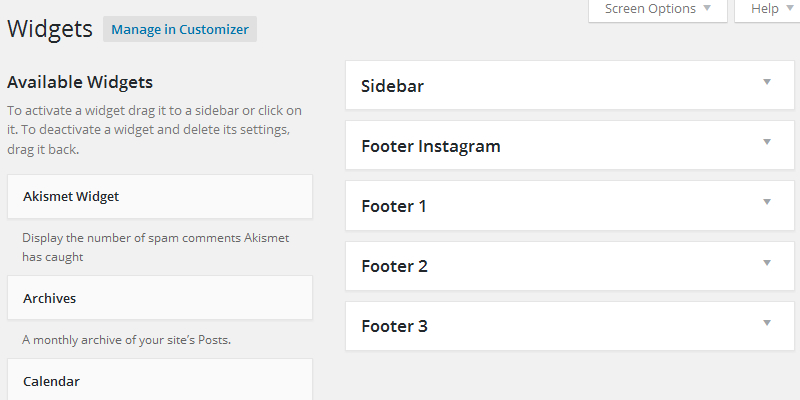
There are 5 widget areas for this theme. Go to Appearance > Widgets to use them.
Theme Customizer
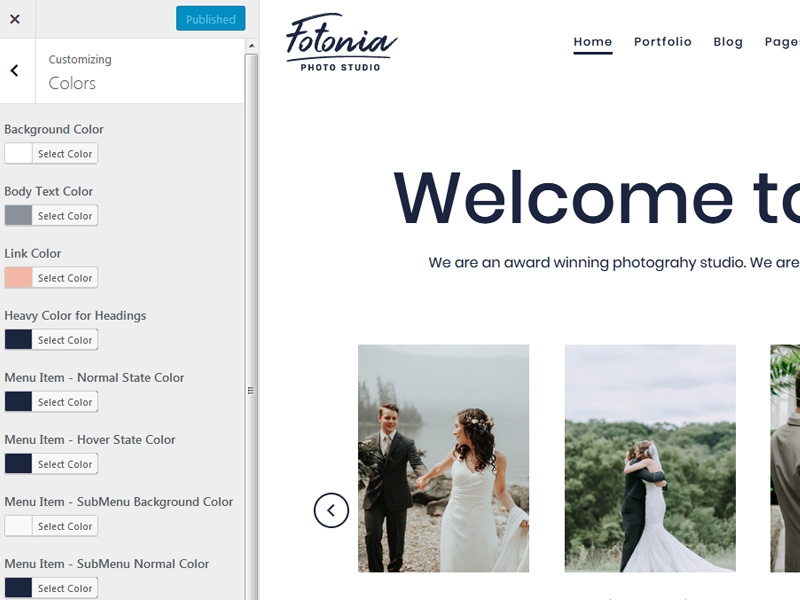
Fotonia is using the WordPress Live Customizer feature. Go to Appearance > Customize and change site title, colors, upload your logo and more. You'll see real time preview of changes you made to your site.
Shortcodes
Here's the list of available shortcodes:
-
Display portfolio items v1 shortcode: [portfolio_v1 cols="" count=""]
The count attribute is optional.
The cols attribute can be 3 or 4.
-
Display portfolio items v2 shortcode: [portfolio_v2 cols="" count=""]
The count attribute is optional.
The cols attribute can be 3 or 4.
-
Display portfolio slider v1 shortcode: [portfolio_slider count=""]
The count attribute is optional.
-
Display portfolio slider v2 shortcode: [portfolio_slider_v2 count=""]
The count attribute is optional.
-
Gallery shortcode: [match_gallery_masonry post_id="" cols="4"], cols attribute can be 3 or 4
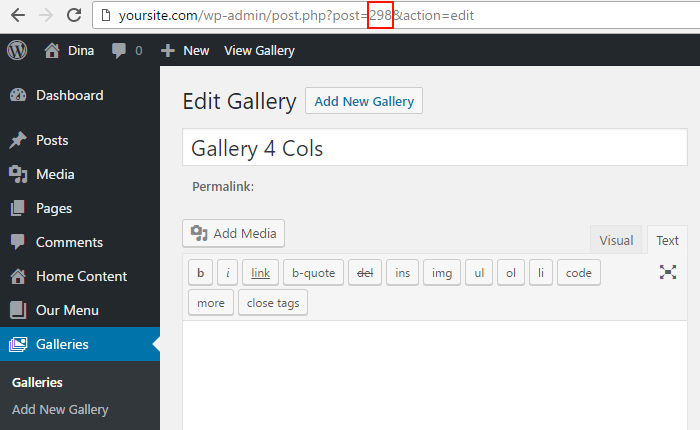
The post_id attribute is required. You'll find the post ID by clicking its title in the Portfolio section. The post will open in post editor and you'll see the post ID in your browser's address bar. Check the image below:
The cols attribute can be 3 or 4.
-
Blog shortcode: [blog_3cols count=""]
The count attribute is optional.
Demo Image & Icon Credits
Child Theme
Fotonia theme comes with a child theme in the main download package.
A child theme is a theme that inherits the functionality and styling of another theme, called the parent theme.
Child themes are recommended if you modify the theme files code and don't want to lose your customization when updating the theme to a new version.
Change Log
- version 1.7.4
Compatible with WordPress 7.0
[Updated] MT-Fotonia plugin - version 1.7.3
[Updated] theme options
[Updated] MT-Fotonia plugin - version 1.7.2
Compatible with WordPress 6.9
[Updated] MT-Fotonia plugin - version 1.7.0
Maintenance Update
[Updated] js gallery library
[Updated] MT-Fotonia plugin
[Replaced] social icons with svgs
[Removed] FontAwesome plugin as a required plugin
[Fixed] few css styles - version 1.6.9
Compatible with WordPress 6.8
[Improved] theme accessibility - added accessible name for buttons, fixed headings order in the footer, added main tag container, added accessible name for social icons.
[Updated] MT-Fotonia plugin
[Added] lazy load for single gallery image navigation
[Fixed] few css styles - version 1.6.8
[Updated] Twitter icon to X
[Updated] theme plugin
[Fixed] portfolio shortcode - version 1.6.7
Compatible with WordPress 6.7
[Updated] MT-Fotonia plugin
[Fixed] gallery filter shortcodes
- version 1.6.6
Maintenance update
Compatible with WordPress 6.6
[Updated] MT-Fotonia plugin
[Updated] theme options
[Updated] portfolio shortcodes
- version 1.6.5
Compatible with WordPress 6.5
[Updated] MT-Fotonia plugin
[Updated] theme options
[Added] default page appearance tools for WP 6.5 editor
- version 1.6.3
[Updated] MT-Fotonia plugin
[Updated] theme options - version 1.6.1
[Updated] MT-Fotonia plugin
[Updated] js lightbox
[Added] block support for link-color & border - version 1.6.0
[Updated] MT Fotonia plugin [Updated] demo import - version 1.5.7
[Updated] MT Fotonia plugin - version 1.5.6
[Updated] bundled plugins
[Updated] js lightbox
[Fixed] default top header image option
[Fixed] portfolio shortcodes - version 1.5.2
[NEW] Home 2 w/ content
[NEW] Contact 3
[Updated] Boostrap
[Updated] style.css - version 1.5.0
[Updated] bundled plugins
[Tweak] small css styles
[Removed] Files code to speed up site loading - version 1.4.6
[Added] email social icon
[Updated] ACF plugin
[Updated] lightbox script
- version 1.4.3 [Updated] All bundled plugins [Updated] js gallery [Updated] minor css style changes
- version 1.4.2 [Updated] theme options [Updated] bootstrap [Tweak] background color for lazy load images [Tweak] elements styles
- version 1.4.1 [Updated] theme options [Updated] images gallery with lazy loading attribute [Updated] js gallery [Updated] font icons
- version 1.4.0 [Tweak] Homepages - now they are created with WordPress editor using shortcodes for portfolios [Updated] Bootstrap [Updated] Bundle plugins [Updated] theme translation [Updated] portfolio shortcodes [Updated] style.css
- version 1.3.5 [NEW] single masonry gallery shortcode [Updated] Bundle plugins
- version 1.3.2 [Updated] Bundled plugins [Updated] Gutenberg styles [Updated] Portfolio shortcodes [Updated] Blog shortcode [Fixed] js lightbox script
- version 1.3.0 [Updated] Bootstrap [Updated] ACF [Updated] Font Awesome [Updated] portfolio shortcodes [Fixed] styles for Gutenberg blocks
- version 1.2.5 [Updated] theme customizer
- version 1.2.0 [NEW] Shortcodes to display portfolio items [Updated] theme options [Updated] style.css