Need to change the order of pages in WordPress? By default, WordPress may display pages alphabetically, by date, or based on theme and menu settings. But if you want more control over page order for navigation, usability, or content structure, there are several simple ways to do it.
In this guide, you’ll learn how to reorder pages in WordPress using built-in options like Page Attributes and Quick Edit, as well as drag-and-drop plugins for larger or more complex sites.
These methods can help you organize pages more clearly, improve the way visitors move through your site, and keep important content in the right position.
How to Reorder Pages in WordPress
Reordering pages in WordPress helps you create a clearer structure for visitors and makes it easier to control how content is organized on your site. Whether you run a blog, business website, or online store, WordPress gives you several ways to change page order, from built-in settings to drag-and-drop plugins.
Method 1: Reorder Pages Using Page Attributes
If you’re looking for a simple way to reorder pages in WordPress without plugins or coding, Page Attributes is your go-to method. It’s built right into WordPress and works like magic for small sites with only a handful of pages. No extra tools, no tech headaches – just straightforward adjustments.
Here’s how it works: WordPress lets you assign a number to each page through the Order field in the Page Attributes section. Pages with lower numbers show up first, creating a custom hierarchy. For example, you can set your homepage to “1”, your “About Us” page to “2”, and your “Contact” page to “3”. This gives you total control over how your pages are displayed.
Steps to Reorder Pages:
1. Navigate to Pages > All Pages in your WordPress dashboard.
2. Click on the page you want to reorder.
3. Look for the Page Attributes section in the editor (usually on the right sidebar). In the Gutenberg editor click the 3 dots ( Actions ) on the right side next to the page title and select Order.
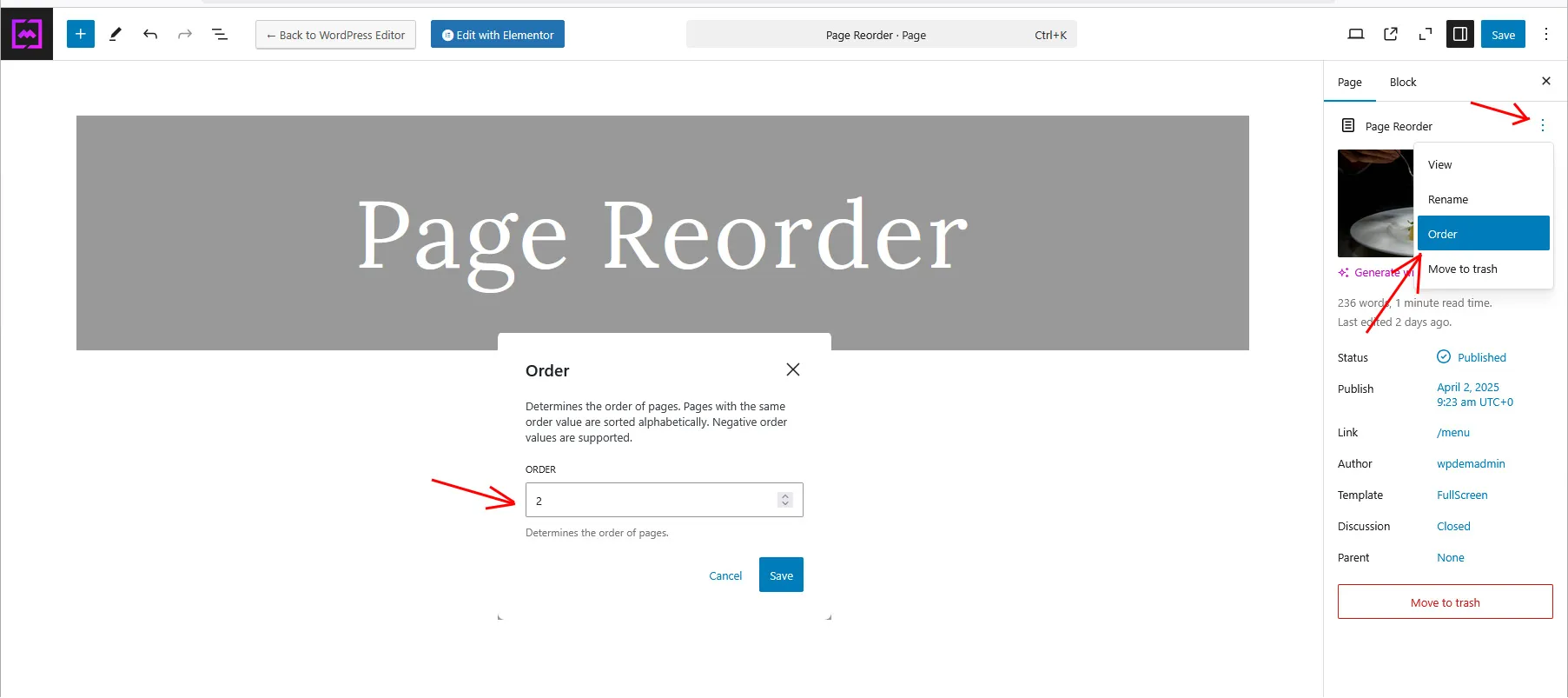
4. Enter a number in the Order field – lower numbers appear first.
5. Hit Save or Publish, and that’s it! Your pages are now reordered.
This method is perfect for small websites or quick fixes, but it can get tedious if you’re dealing with dozens of pages. Imagine assigning numbers manually for 50 pages – it’s not fun. If your site is growing or has complex navigation needs, you might want to explore plugins or other methods for faster results.
Method 2: Quick Edit for Fast Adjustments
Need a faster way to reorder pages in WordPress? The Quick Edit feature is your shortcut. It’s simple, efficient, and perfect for making quick adjustments without opening each page individually. If you’re juggling multiple pages and don’t want to deal with the hassle of editing them one by one, this method is a lifesaver.
Here’s how it works: Quick Edit lets you access essential settings for a page – like its order – directly from the Pages > All Pages screen. No need to dive into the full editor. You just hover over the page title, click Quick Edit, and adjust the Order number. Lower numbers appear first in your hierarchy, so you can easily prioritize pages like “Home” or “About Us.”
Steps to Use Quick Edit:
1. Go to Pages > All Pages in your dashboard.
2. Hover over the page title you want to reorder. Click Quick Edit (it pops up right under the page name).
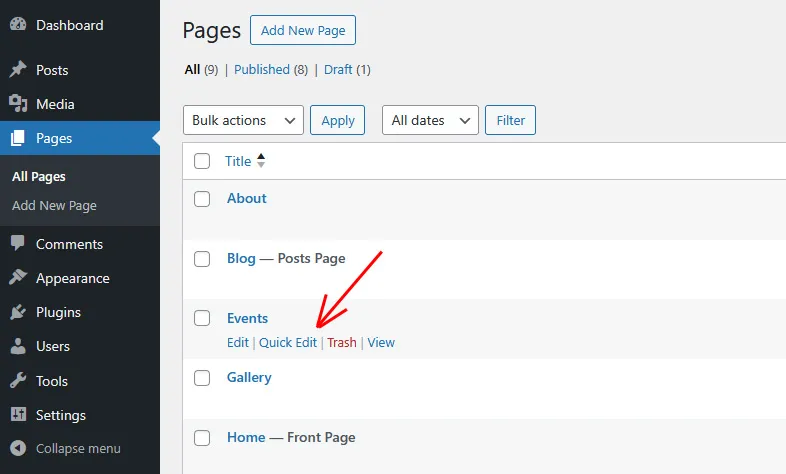
3. Find the Order field and type in a number – lower numbers show up first.
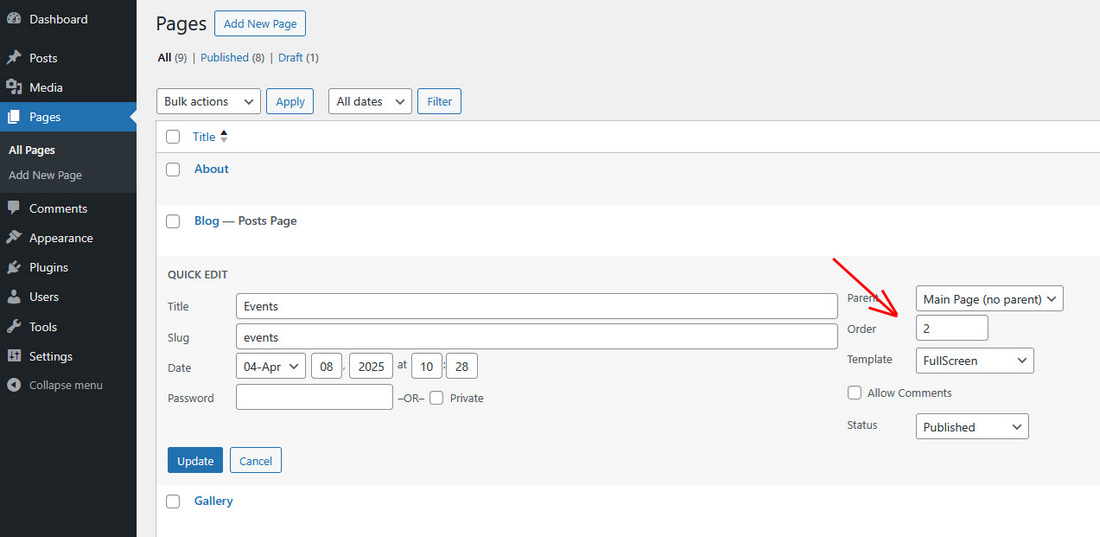
4. Hit Update, and you’re done!
The Quick Edit feature in WordPress is a fantastic tool also for reordering posts and custom post types, especially when you want to organize them by date. Here’s why it works so well:
WordPress naturally arranges posts in reverse chronological order – newer posts appear first. But sometimes, you need to highlight older content or reorganize posts to fit a specific timeline. Quick Edit lets you adjust the publication date directly, giving you total control over the order without opening each post individually. This is a huge time-saver if you’re managing a blog, restaurant, or any site with frequent updates.
For example, let’s say you’re managing a restaurant website, and you’ve set up your restaurant food menu in WordPress items as custom post types. You’ve got categories like “Appetizers,” “Main Courses,” and “Desserts,” but the order is all wrong. Your famous cheesecake is showing up before the steak, and your salads are buried at the bottom. Not ideal, right?

This is where Quick Edit comes in handy. It allows you to reorder your menu items quickly by adjusting their publication dates – no need to open each item individually.
Using Quick Edit for custom post order and date-based reordering is one of the simplest ways to keep your WordPress site organized and user-friendly.
Method 3: Drag and Drop Plugins
Manually reordering pages in WordPress can be overwhelmed, especially if you’re managing a large site. That’s where drag-and-drop plugins come in. They make the process so much easier, faster, and honestly, kind of fun. The best part? You don’t need to mess with numbers or dive into settings. Just grab a page, drag it to where you want, and drop it. Done.
Why Use Drag-and-Drop Plugins?
Drag-and-drop plugins are especially useful for websites with many pages, parent-child page structures, or custom post types. They can save time and make it easier to organize content visually without editing each page one by one.
Here are 3 page reorder plugins that you could try:
Simple Custom Post Order

The Simple Custom Post Order plugin lets you reorder posts, pages, custom post types, and taxonomies with drag-and-drop sorting inside the WordPress admin. It is a practical option if you want a lightweight way to manage content order without editing each item manually.
Post Types Order

The Post Types Order plugin gives you drag-and-drop control over posts and custom post types. It is useful for sites that need more control over content ordering in the admin area, especially when the default WordPress order does not match the way you want to present content.
Simple Page Ordering

Simple Page Ordering is designed for pages, hierarchical custom post types, and post types that support page-attributes. It allows drag-and-drop ordering directly from the built-in page list without adding a separate interface.
This makes it a strong option for users who want a simple way to reorder page-based content inside the standard WordPress admin screen.
Final Thoughts on Reordering Pages in WordPress
Reordering pages in WordPress is simple once you choose the method that fits your site. For smaller websites, Page Attributes and Quick Edit are usually enough. For larger sites or more complex structures, drag-and-drop plugins can make page organization much faster. The main goal is to keep your site structure clear, user-friendly, and easy to manage.